age calculator
How do you create an age calculator using Excel
Now that you know how to make an age formula in Excel, you can build a custom age calculator, for example this one:https://onedrive.live.com/embed?c
What you see here is an embedded Excel Online sheet, so don't hesitate to enter your birth date in the appropriate cell, and you'll know your age in a flash.
Calculators use the following formulas to calculate age basing it on the "" date of birth in cell A3 and the date of birth in cell A3 and the current date.
-
Formula in B5 calculates age in years, months, and days:
=DATEDIF(B2,TODAY(),"Y") & " Years, " & DATEDIF(B2,TODAY(),"YM") & " Months, " & DATEDIF(B2,TODAY(),"MD") & " Days" -
Formula in B6 calculates age in months:
=DATEDIF($B$3,TODAY(),"m") -
Formula in B7 calculates age in days:
=DATEDIF($B$3,TODAY(),"d")
If you have some experience working with Excel Form controls, you have the option to calculate age on a particular date as shown in the image below:
For this, add two option buttons ( Developer tab > Insert > Form controls > Option Button) Add them to some cell. Then, you can write an IF/DATEDIF calculation to determine age that is at present or at the date specified by the user.
The formula operates according to the following reasoning:
-
If the Today's date option box is selected, value 1 appears in the linked cell (I5 in this example), and the age formula calculates based on the today date:
IF($I$5=1, DATEDIF($B$3,TODAY(),"Y") & " Years, " & DATEDIF($B$3,TODAY(), "YM") & " Months, " & DATEDIF($B$3, TODAY(), "MD") & " Days") -
If the Specific date option button is selected AND a date is entered in cell B7, age is calculated at the specified date:
IF(ISNUMBER($B$7), DATEDIF($B$3, $B$7,"Y") & " Years, " & DATEDIF($B$3, $B$7,"YM") & " Months, " & DATEDIF($B$3, $B$7,"MD") & " Days", ""))
Then, you can nest the above functions together, and you'll be able to get the entire age calculator (in the form of B9):
=IF($I$5=1, DATEDIF($B$3, TODAY(), "Y") & " Years, " & DATEDIF($B$3, TODAY(), "YM") & " Months, " & DATEDIF($B$3, TODAY(), "MD") & " Days", IF(ISNUMBER($B$7), DATEDIF($B$3, $B$7,"Y") & " Years, " & DATEDIF($B$3, $B$7,"YM") & " Months, " & DATEDIF($B$3, $B$7,"MD") & " Days", ""))
The formulas used in B10 and B11 work with the same logic. Of course, they are far simpler since they use only one DATEDIF function to return age as the number of full months or days, or both.
To find out more, I invite you to Download the Excel Age Calculator and investigate the formulas in cells B9:B11.
Download Age Calcqulator for Excel
Useful and ready-to-use age calculator for Excel
Users of our Ultimate Suite don't have to create your own age calculator in Excel - it's only two clicks away:
-
Select a cell where you'd like to place an age formula, go to the Ablebits Tools tab and then click the Date & Time group, then click the Date and Time Wizard button.
- The Date & Time Wizard will begin, and you'll be taken right to the page for age. tab.
-
On the
Age
In the tab, there are 3 things to mention:
- Birthdate as an individual cell reference or date in the format mm/dd/yyyyyy.
- Age at the present moment or an exact date.
- Select whether to calculate age in terms of days, months year, or even an exact age.
- Click the Formula to insert button.
Done!
The formula is inserted in the cell selected in a flash, and you double-click your fill button to duplicate it down the column.
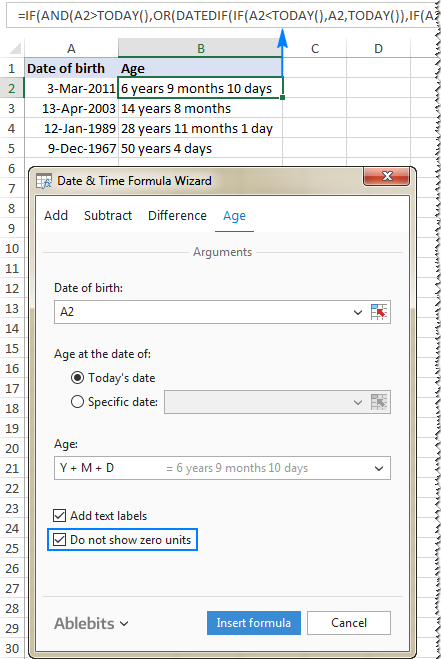
As you may have observed, the formula developed using the Excel age calculator can be much more complex than the one we've talked about so far However, it is able to accommodate plural and singular units like "day" and "days".
If you'd like to rid yourself of zero units similar to "0 days", select the Do not show zero units check box:
If you're eager to play with this age calculator as well as to discover 60 more time-saving tools that can be added to Excel, you are welcome to download a test version of our Ultimate Suite. If you're satisfied with the tool and choose to purchase an account, don't forget to take advantage of this deal for our blog readers.
How do you highlight specific types of ages (under or over a certain age)
In certain instances, you may need not simply calculate age in Excel, but also highlight cells that contain ages that are under or over a specific age.
In the event that your age calculation formula is able to calculate the number of total years that you have, you can design a regular conditional formatting rule using a formula such as these:
- To show ages that are equal or higher than 18:
- To highlight ages under 18: =$C2<18
C2 is the most top cell in the column titled Age (not even including the header).
But what happens if your formula has age in months and years and days, or even in years days and months? In this situation, you will have create a rule basing it on a DATEDIF formula which calculates age from date of birth in years.
If the birthdates occur in column B beginning with row 2. The formulas are:
-
To highlight ages under 18 (yellow):
=DATEDIF($B2, TODAY(),"Y")<18 -
To highlight ages between 18 and 65 (green):
=AND(DATEDIF($B2, TODAY(),"Y")>=18, DATEDIF($B2, TODAY(),"Y")<=65) -
To show Ages above 65 (blue):
=DATEDIF($B2 (TODAY (),"Y")>65
To create rules based on the formulas above, choose the cells or rows which you would like to highlight, go to the Home tab, then Styles section, and then select to create a new rule using Conditional Formatting... Then, use a formula to determine the cells that you want to format.
The specific steps are available on this page: How to create a conditional formatting rule basing on a formula.
This is how you determine age by using Excel. I hope the formulas are easy to understand and you will give them some time in your worksheets. Thank you for taking the time to read and we look forward to seeing you on our blog next week!
Comments
Post a Comment